
How to Convert Text to Excel Without Losing Formatting
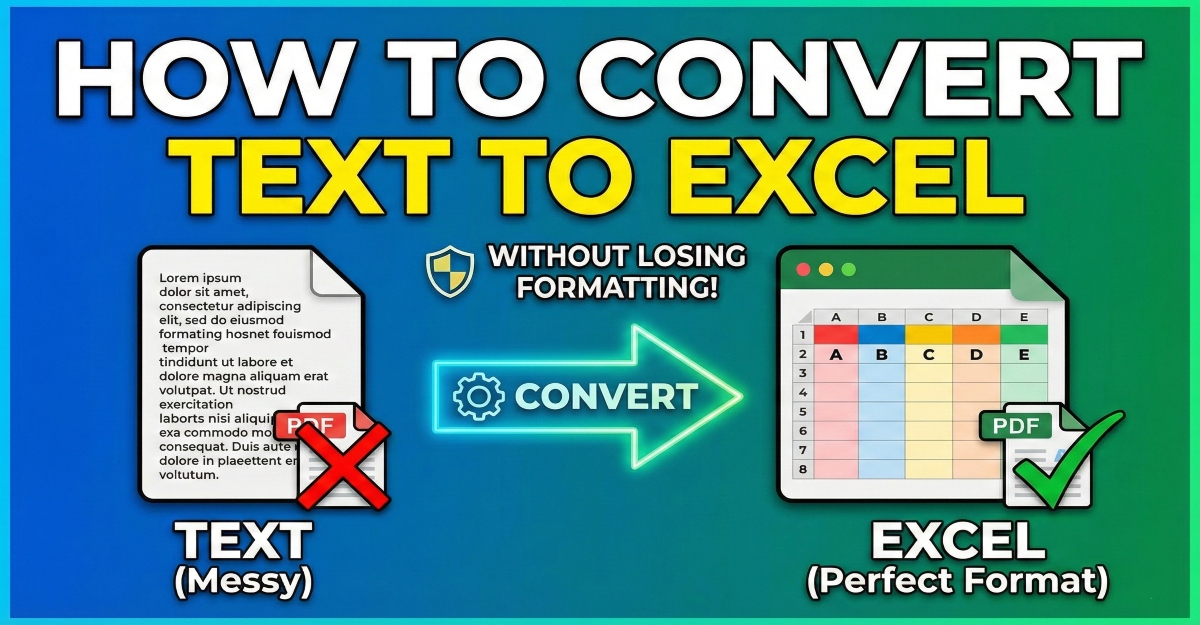
How to Convert Text to Excel Without Losing Formatting, We’ve all been there: You export a dataset from a database or receive a client list in a .txt or .csv file. You open it directly in Excel, and disaster strikes.
The “007” ID code has become just “7”. Your carefully formatted dates have turned into a string of unrecognizable hashtags or serial numbers. Long credit card numbers have been converted into useless scientific notation (e.g., 1.23E+15).
In this guide, we will walk you through the exact methods to convert text to Excel without losing formatting, ensuring your data remains pristine.
Method 1: The “Text Import Wizard” (Best for Control)
This is the classic, most reliable method for legacy data in older versions of Excel or when dealing with simple `.txt` files. It gives you column-by-column control before the data ever hits the spreadsheet.
- Open a blank Excel sheet.
- Go to the Data tab on the ribbon.
- Click Get External Data > From Text.
- Select your file and click Import.
- The Crucial Step: In the wizard (Step 3 of 3), select the columns that contain sensitive formatting (like Zip Codes, IDs with leading zeros, or phone numbers).
- Change the “Column data format” radio button from General to Text.
- Click Finish.
By explicitly telling Excel to treat the column as “Text,” you force it to keep every zero, symbol, and space exactly as it appears in the original file.
Method 2: Power Query (Best for Automation)
If you are using Excel 2016 or newer (or Office 365), Power Query is a game-changer. It’s more powerful than the wizard and remembers your steps, so you can refresh the data later if your source file changes.
- Go to Data > Get Data > From File > From Text/CSV.
- A preview window will appear. Click Transform Data (do NOT click Load yet!).
- The Power Query Editor window will open. Look at the “Applied Steps” list on the right side.
- Excel often adds an automatic step called “Changed Type”. If you see your leading zeros disappeared in the preview, delete this “Changed Type” step by clicking the X next to it.
- To ensure formatting is kept, select the header of the columns you want to protect.
- Right-click the header and choose Change Type > Text.
- Click “Close & Load” in the top left corner.
Method 3: The “Paste Special” Trick (Quickest for Small Data)
If you just have a small snippet of text data on your clipboard that you want to convert rapidly, you don’t need a wizard. You just need to prepare the destination first.
The Wrong Way:
Copying the text and pressing Ctrl+V directly into a standard cell.
The Right Way:
- Select the empty cells in Excel where you want the data to go.
- Format these empty cells as Text (Go to Home tab > Number Format dropdown > Select “Text”).
- Now, copy your source text data.
- In Excel, right-click the first formatted cell and select Paste Special.
- Choose Text (sometimes labeled as “Unicode Text”) and click OK.
Method 4: Use a Specialized Online Converter (Easiest)
Sometimes, the manual Excel methods are too tedious, especially if you are on a mobile device, using a tablet, or don’t have access to the full desktop version of Excel. In this case, a dedicated online converter is your best friend.
These tools are designed to parse text files intelligently and automatically handle the transition to Excel format (XLSX) while preserving the integrity of your table structure and data types.
For a fast, free, and secure solution that requires zero configuration, we recommend checking out this Text to Excel Converter By I Love PDF 3. It handles the heavy lifting for you, ensuring your columns align perfectly without the headache of manual configuration.
Summary
Losing formatting during data import is a choice, not a requirement. By understanding how Excel interprets incoming data, you can take control of the process.
Let the infographic above serve as your guide: always choose the “Right Way” by explicitly defining your data types as Text before final import.Bonus Tip: For a visual walkthrough of the classic Import Wizard method mentioned in Method 1, you can find many tutorials on YouTube, such as this Excel Text Import Guide.